> ## Documentation Index
> Fetch the complete documentation index at: https://docs.chorus.sh/llms.txt
> Use this file to discover all available pages before exploring further.
# Ambient Chat
> Chat with an AI anywhere on your Mac
Ambient chat gets you quick answers while you're working in other apps. It's especially useful if you want to quickly share your screen with an AI.
To create a new Ambient Chat, press Option + Space.
Here's how one Chorus user makes use of Ambient Chat:
> I decided to use Chorus as I read through a new research paper. \[...] Being able to chat with the LLM and research into specific elements of the paper without needing to copy and paste or change tabs was a fluid experience. The minimal UI of the ambient window blended in perfectly and didn't distract me from my reading.
## Sharing your screen
Vision mode lets Chorus see your screen, by including a screenshot of your screen
every time you send a message.
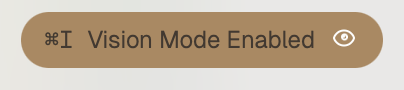
Vision mode is OFF by default. To enable vision mode, press ⌘ + I. You'll see the eye open, and this indicator will appear:
 If you want to use vision mode, you'll need to grant Chorus screen-recording
permissions. Vision mode is totally optional.
## Configuring the Ambient Chat shortcut
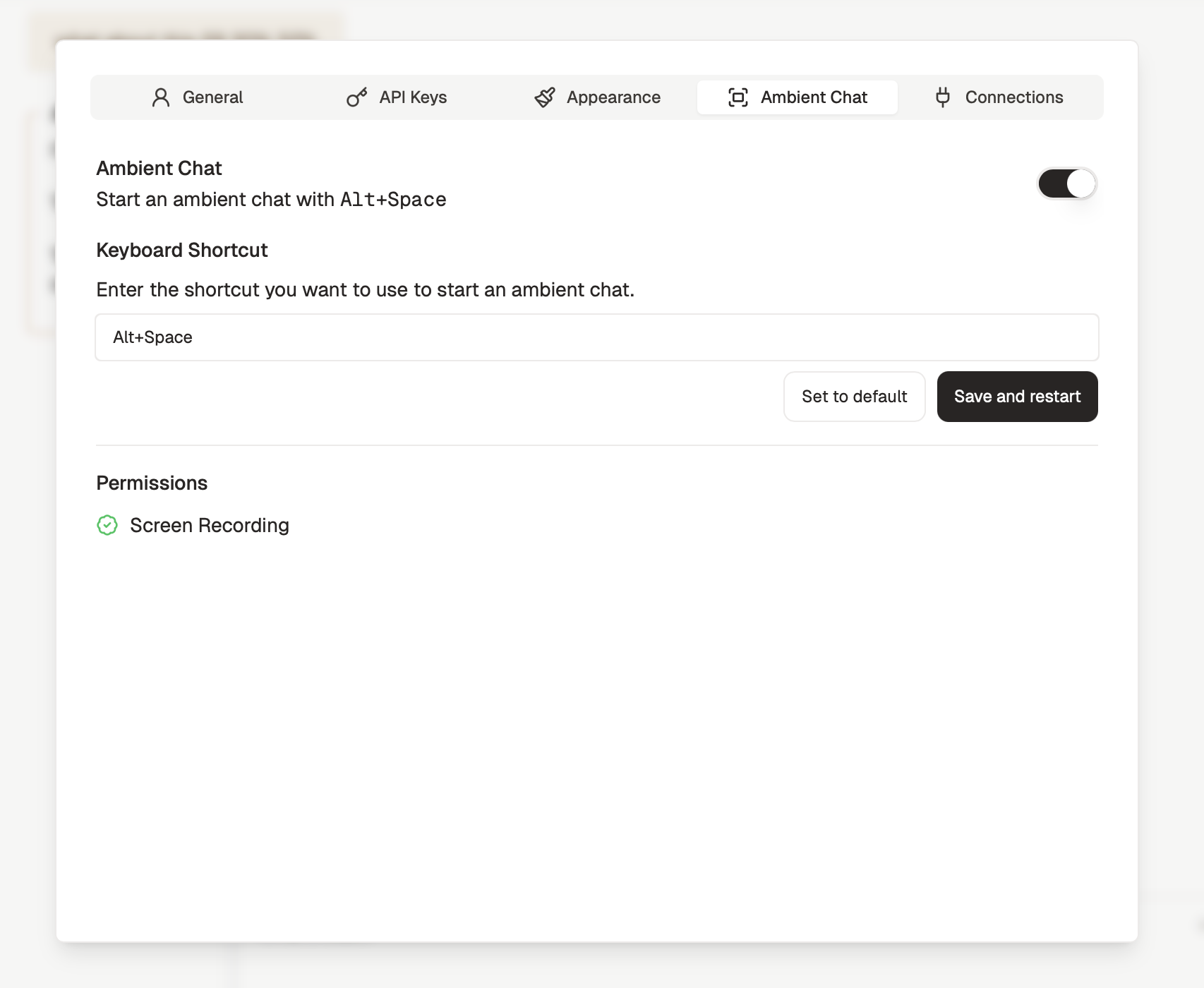
By default, Ambient Chat opens with Option + Space, but you can change it to any shortcut you like.
Open settings with ⌘ + ,, or by clicking the settings icon in the bottom of the sidebar, and go to the "Ambient Chat" section.
If you want to use vision mode, you'll need to grant Chorus screen-recording
permissions. Vision mode is totally optional.
## Configuring the Ambient Chat shortcut
By default, Ambient Chat opens with Option + Space, but you can change it to any shortcut you like.
Open settings with ⌘ + ,, or by clicking the settings icon in the bottom of the sidebar, and go to the "Ambient Chat" section.
 ## Continuing in the main window
If you'd like to open a chat in your main Chorus window, press ⌘ + O while Ambient Chat is open.
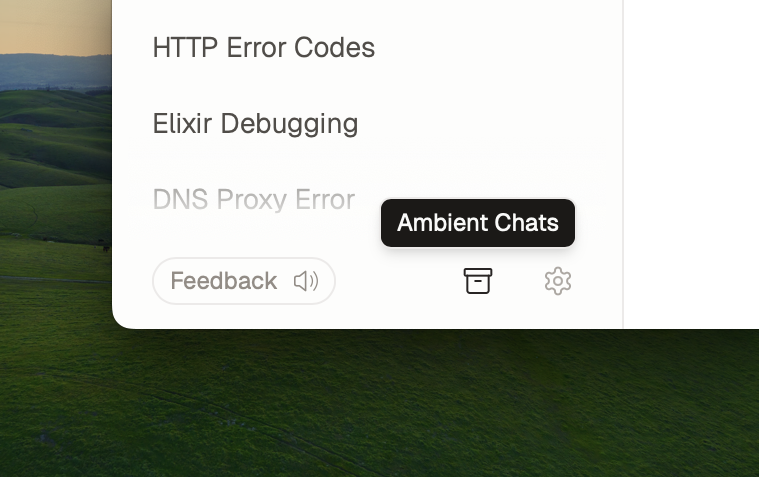
You can access your full history of Ambient Chats by clicking the drawer icon in the bottom left of the main Chorus window.
## Continuing in the main window
If you'd like to open a chat in your main Chorus window, press ⌘ + O while Ambient Chat is open.
You can access your full history of Ambient Chats by clicking the drawer icon in the bottom left of the main Chorus window.
 ## FAQ
Yes, you can turn off Vision Mode by pressing ⌘ +{" "}
I while Ambient Chat is open. You'll see the eye closed. If
you're on the team plan and would like to turn off Vision Mode for all
team members, email us at
[founders@chorus.sh](mailto:founders@chorus.sh).
Yes, your screen contents are private. Screenshots are only sent to the
AI provider and are not stored on our servers.
## FAQ
Yes, you can turn off Vision Mode by pressing ⌘ +{" "}
I while Ambient Chat is open. You'll see the eye closed. If
you're on the team plan and would like to turn off Vision Mode for all
team members, email us at
[founders@chorus.sh](mailto:founders@chorus.sh).
Yes, your screen contents are private. Screenshots are only sent to the
AI provider and are not stored on our servers.