> ## Documentation Index
> Fetch the complete documentation index at: https://docs.chorus.sh/llms.txt
> Use this file to discover all available pages before exploring further.
# Tools + MCP
> Let the AI interact with other software you use
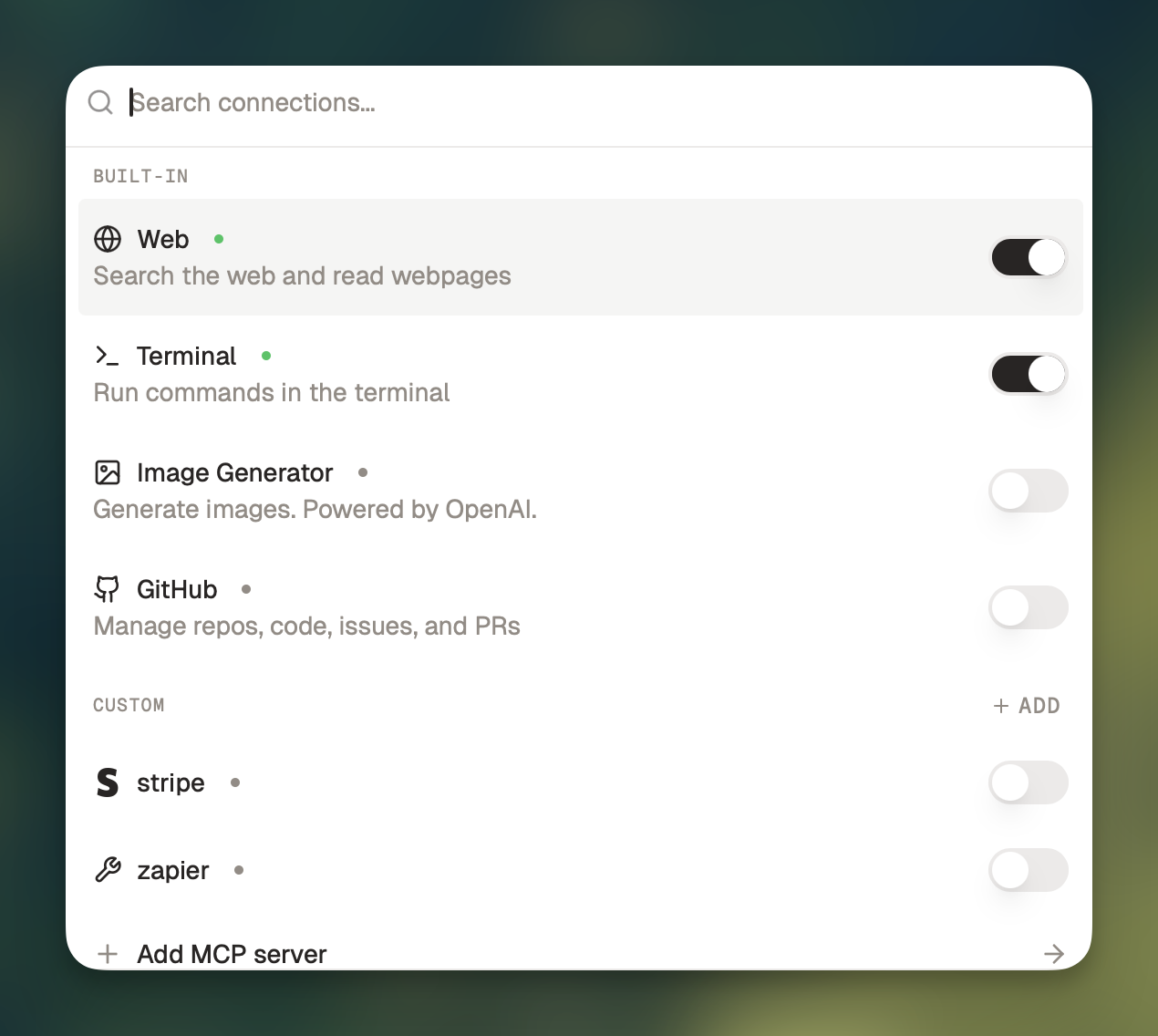 Tools allow AI models to perform actions like searching the web, reading Slack messages, or sending emails.
Out of the box, Chorus has access to these sets of tools:
* Web: search the web for information
* Terminal: run terminal commands
* Image Generator: generate images with OpenAI's `gpt-image-1` model
* GitHub: manage repos, code, issues, and PRs
## Enabling tools
To use tools in a chat, click the `Tools` button in the message composer, or press ⌘ + T to open the tool selector.
Toggle on any tools you'd like to use. When the light turns green, the tools are ready.
Even if a tool is available, the AI might decide not to use it. You can
always include instructions in your message like "Use the web tools" or
"Don't use any tools."
You can also add your own tools through [MCP servers](#mcp).
## MCP
You can add local or remote MCP servers in Chorus.
Select the `Add Custom MCP` button in the tools picker or go to `Settings` -> `Connections` to manage your MCPs.
You can also add a custom **local** or **remote** MCP to Chorus by clicking `Add Remote MCP` or `Add Local MCP` in settings.
Once you follow the on-screen prompts, you'll be able to run your custom MCP.
### How to Import MCPs from Claude Desktop
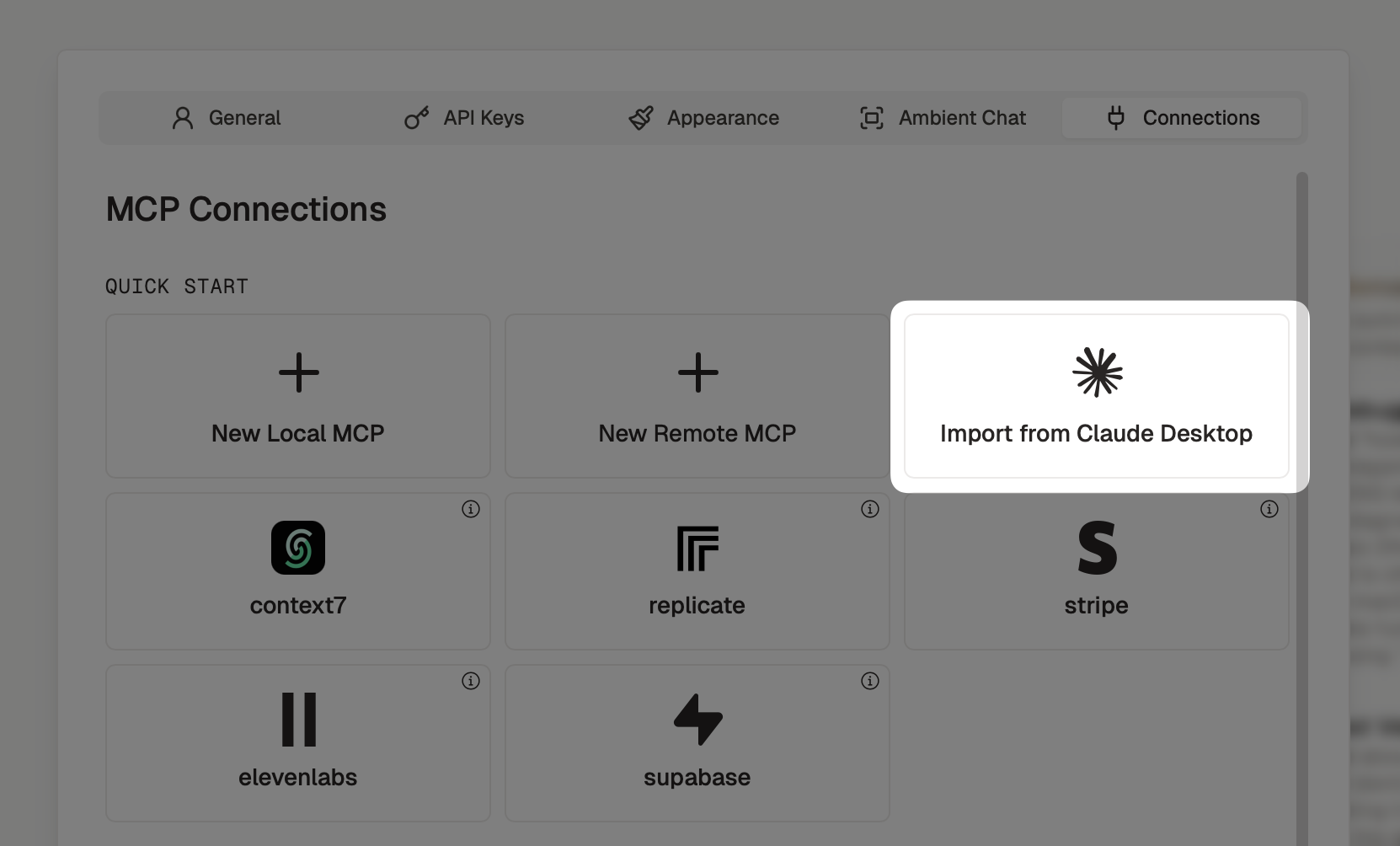
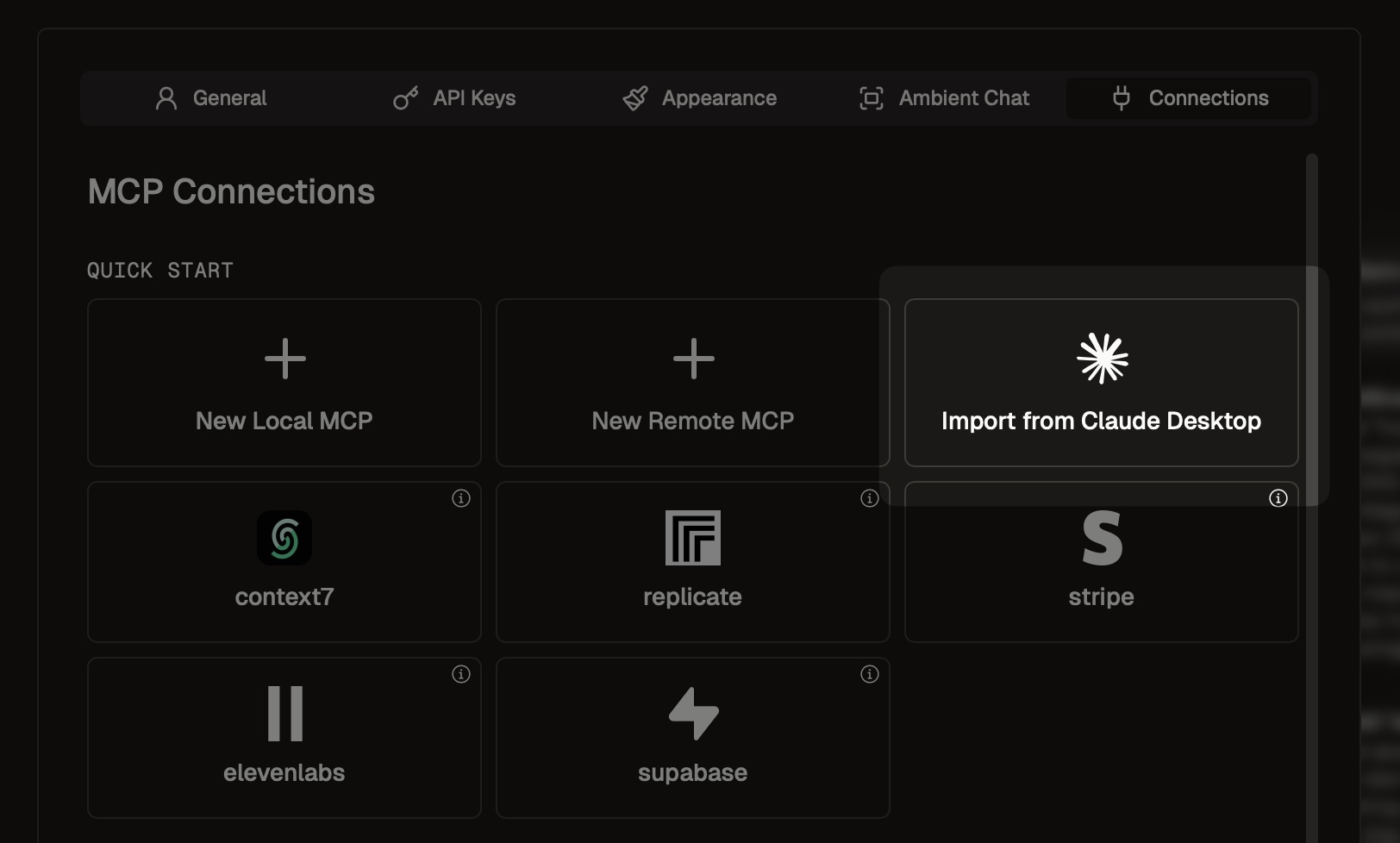
Chorus can import MCPs from Claude Desktop in 1 click.
Go to `Settings` -> `Connections` and click `Import from Claude Desktop`.
Tools allow AI models to perform actions like searching the web, reading Slack messages, or sending emails.
Out of the box, Chorus has access to these sets of tools:
* Web: search the web for information
* Terminal: run terminal commands
* Image Generator: generate images with OpenAI's `gpt-image-1` model
* GitHub: manage repos, code, issues, and PRs
## Enabling tools
To use tools in a chat, click the `Tools` button in the message composer, or press ⌘ + T to open the tool selector.
Toggle on any tools you'd like to use. When the light turns green, the tools are ready.
Even if a tool is available, the AI might decide not to use it. You can
always include instructions in your message like "Use the web tools" or
"Don't use any tools."
You can also add your own tools through [MCP servers](#mcp).
## MCP
You can add local or remote MCP servers in Chorus.
Select the `Add Custom MCP` button in the tools picker or go to `Settings` -> `Connections` to manage your MCPs.
You can also add a custom **local** or **remote** MCP to Chorus by clicking `Add Remote MCP` or `Add Local MCP` in settings.
Once you follow the on-screen prompts, you'll be able to run your custom MCP.
### How to Import MCPs from Claude Desktop
Chorus can import MCPs from Claude Desktop in 1 click.
Go to `Settings` -> `Connections` and click `Import from Claude Desktop`.
 ## Examples
Introduction to MCP:
Use the `Web` and `Terminal` tools in combination to search the web and download information:
Use the `GitHub` tool to manage your GitHub repos, code, issues, and PRs:
## Examples
Introduction to MCP:
Use the `Web` and `Terminal` tools in combination to search the web and download information:
Use the `GitHub` tool to manage your GitHub repos, code, issues, and PRs: