> ## Documentation Index
> Fetch the complete documentation index at: https://docs.chorus.sh/llms.txt
> Use this file to discover all available pages before exploring further.
# Your First Chat
Once you've [installed Chorus](./installation), it's time to create your first chat.
When you open Chorus for the first time, you'll see a new chat window. You can always get back here by clicking the "New Chat" button in the top left or by pressing ⌘ + N.
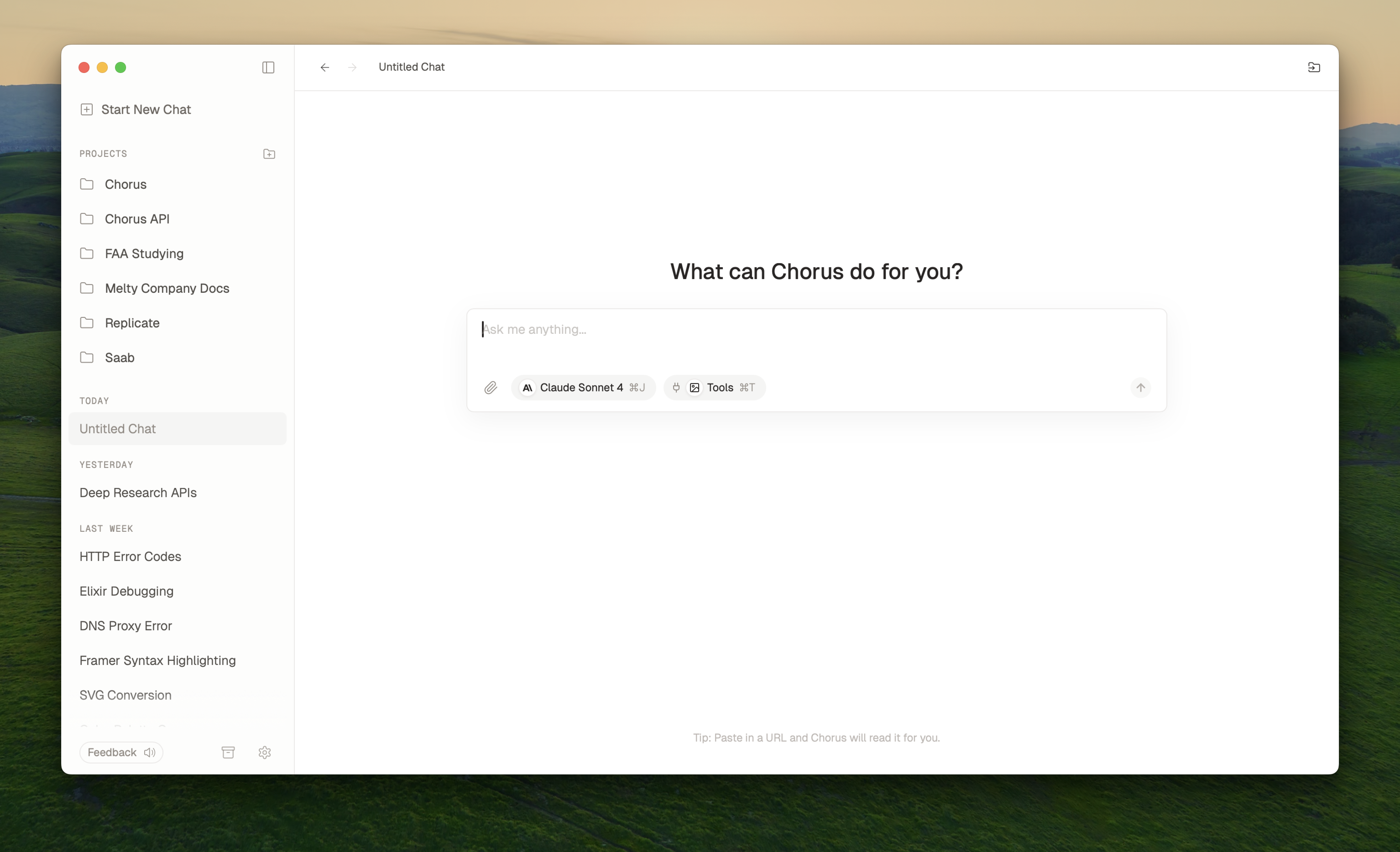
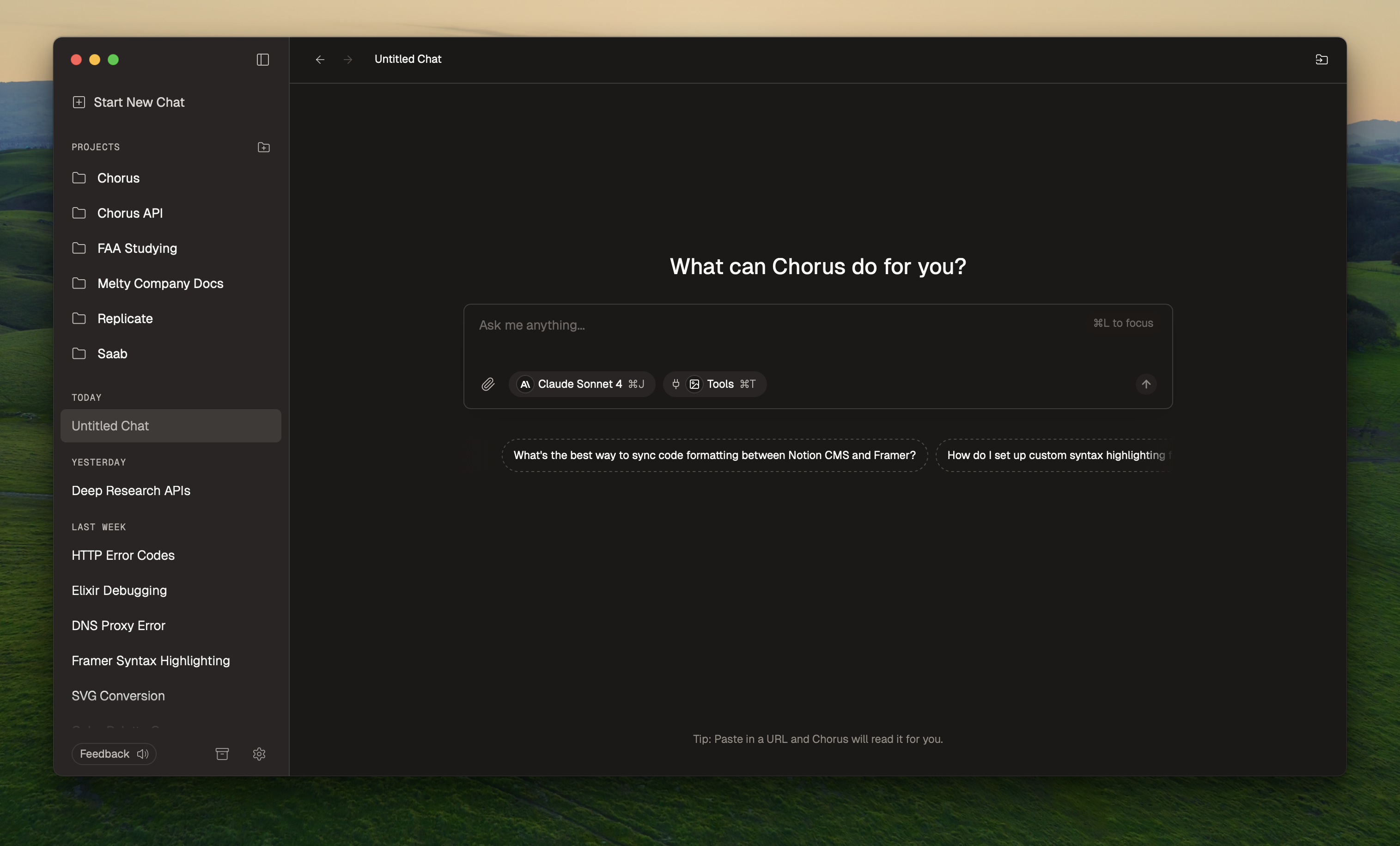 Try typing "Tell me about Chorus" and press enter. An AI will respond to your message.
 ### Adding or changing models
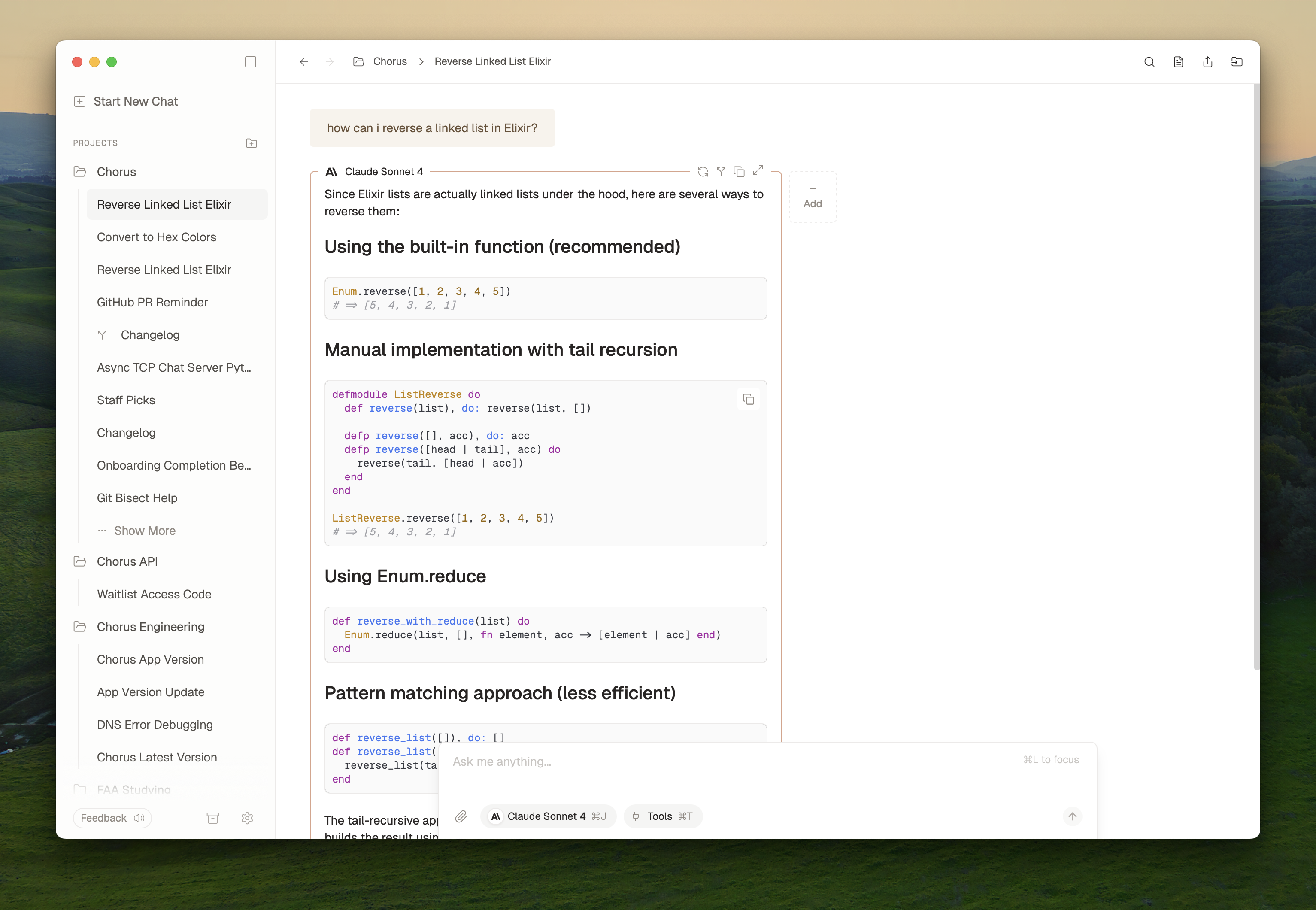
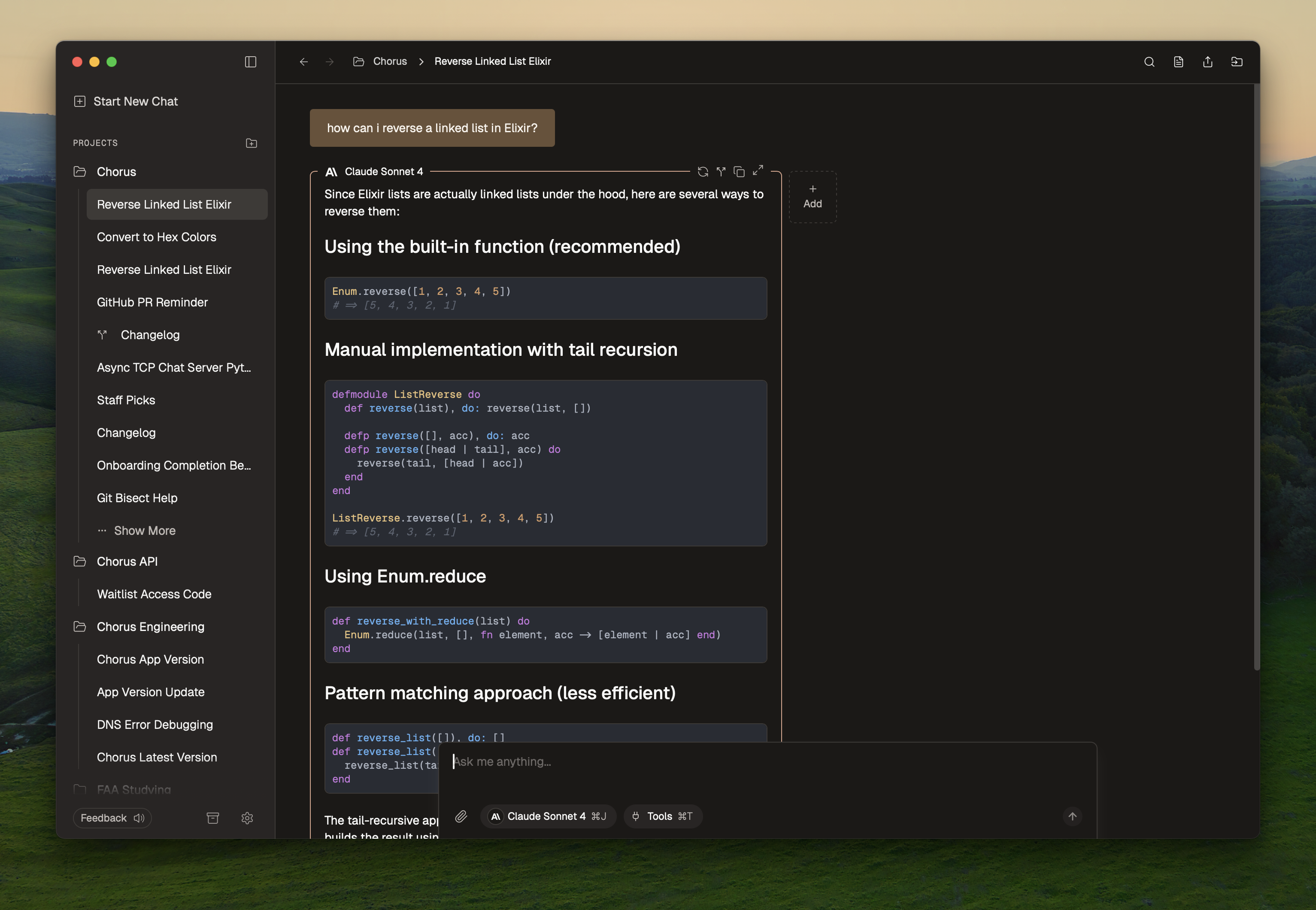
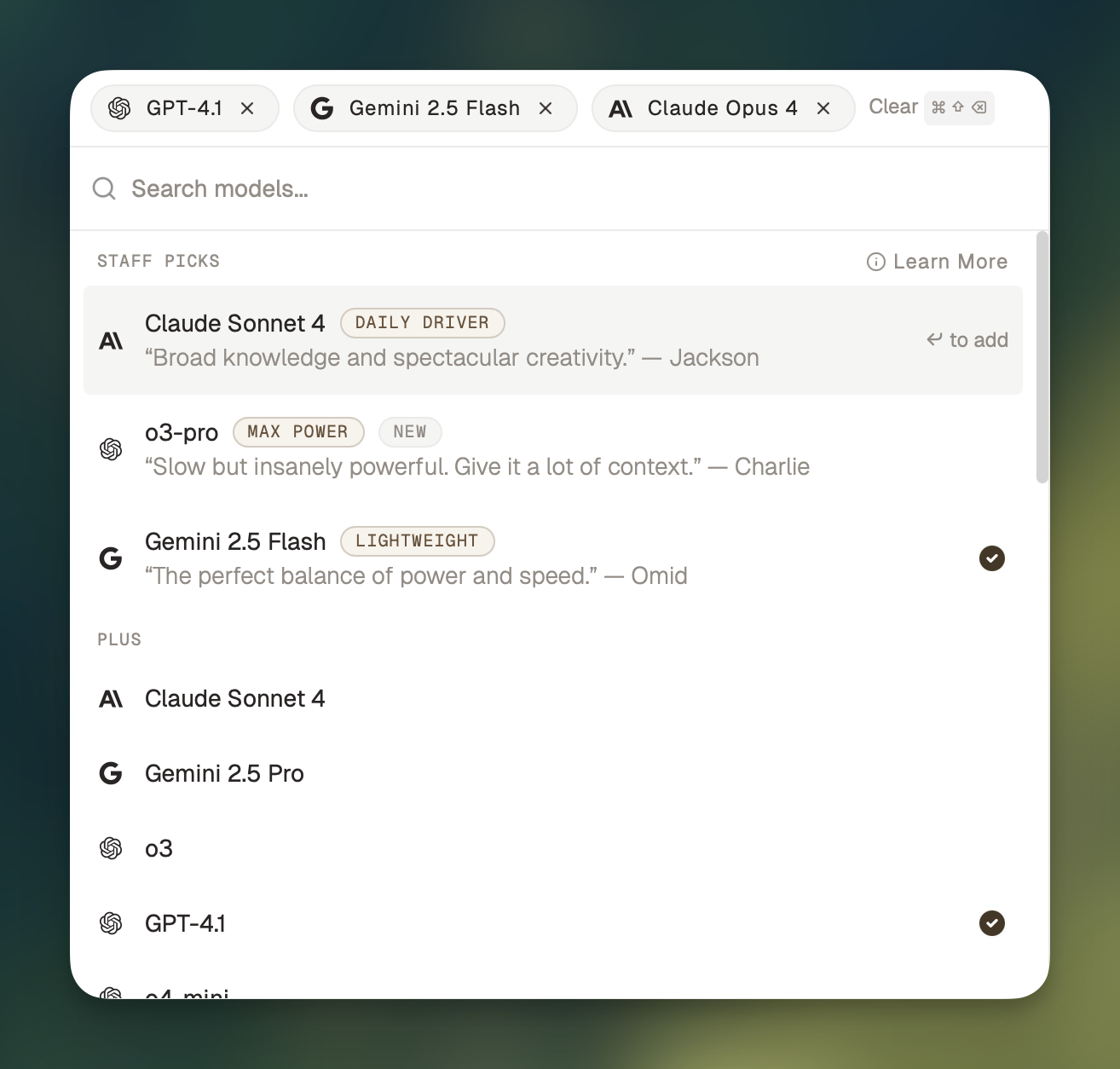 Click on "Claude Sonnet 4" (or press ⌘ + J) to change the model you're chatting with.
In Chorus, you can select multiple models and they'll all respond to your message at once.
Try selecting `Claude Sonnet 4` and `Gemini 2.5 Flash`, and then send a follow-up question, like "Which tools can I use with Chorus?"
Learn more about how and when to use multiple models
### Tools
Give the AIs access to a tool by clicking the `Tools` label (or ⌘ + T). When a tool is enabled, the AI can optionally use it to answer your question.
Try enabling the `web` tool, then send a follow-up question, like "What's the weather like in San Francisco today?"
Learn more about what tools Chorus offers and how to enable them
### Attachments
Add an attachment by dragging and dropping it into the chat, or by pressing the paperclip icon to open the file picker. Chorus can read PDFs, images, and text documents.
If you paste a link into the chat, Chorus will automatically read the webpage.
Click on "Claude Sonnet 4" (or press ⌘ + J) to change the model you're chatting with.
In Chorus, you can select multiple models and they'll all respond to your message at once.
Try selecting `Claude Sonnet 4` and `Gemini 2.5 Flash`, and then send a follow-up question, like "Which tools can I use with Chorus?"
Learn more about how and when to use multiple models
### Tools
Give the AIs access to a tool by clicking the `Tools` label (or ⌘ + T). When a tool is enabled, the AI can optionally use it to answer your question.
Try enabling the `web` tool, then send a follow-up question, like "What's the weather like in San Francisco today?"
Learn more about what tools Chorus offers and how to enable them
### Attachments
Add an attachment by dragging and dropping it into the chat, or by pressing the paperclip icon to open the file picker. Chorus can read PDFs, images, and text documents.
If you paste a link into the chat, Chorus will automatically read the webpage.
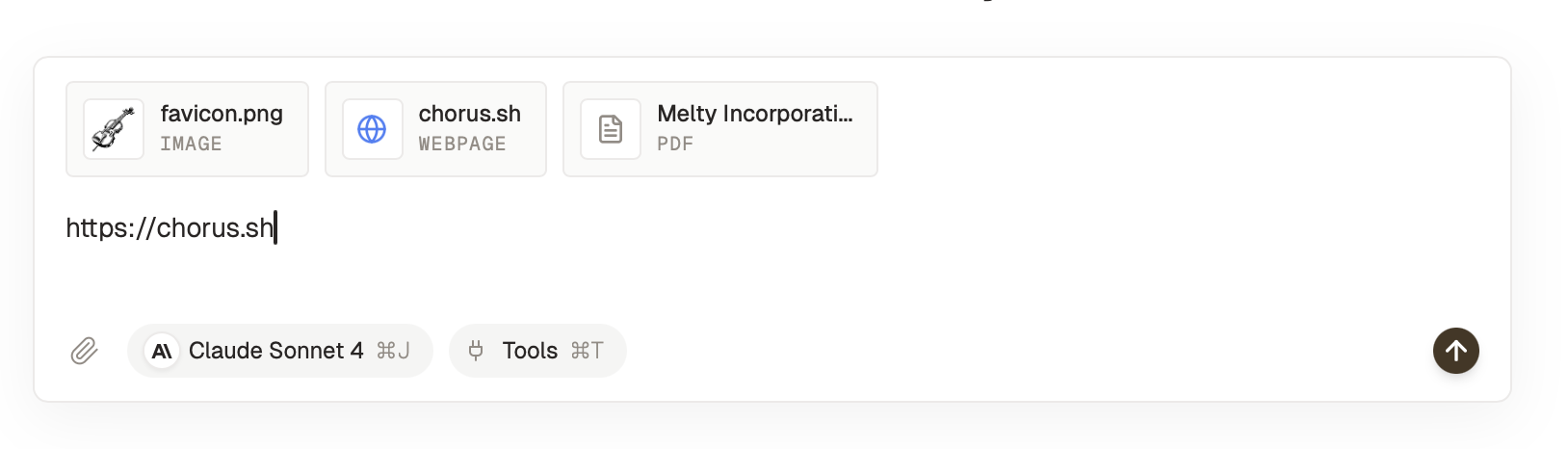 Try adding a few attachments and sending another message.
## Next steps
You've got the basics down! This is a good time to import your chat history:
Get all your chats into Chorus
Or keep reading to explore more of what Chorus can do.
Try adding a few attachments and sending another message.
## Next steps
You've got the basics down! This is a good time to import your chat history:
Get all your chats into Chorus
Or keep reading to explore more of what Chorus can do.